Gift icon
Masalah dulu, alat siap

Ubah Seni Datar Menjadi Lapisan Siap Animasi

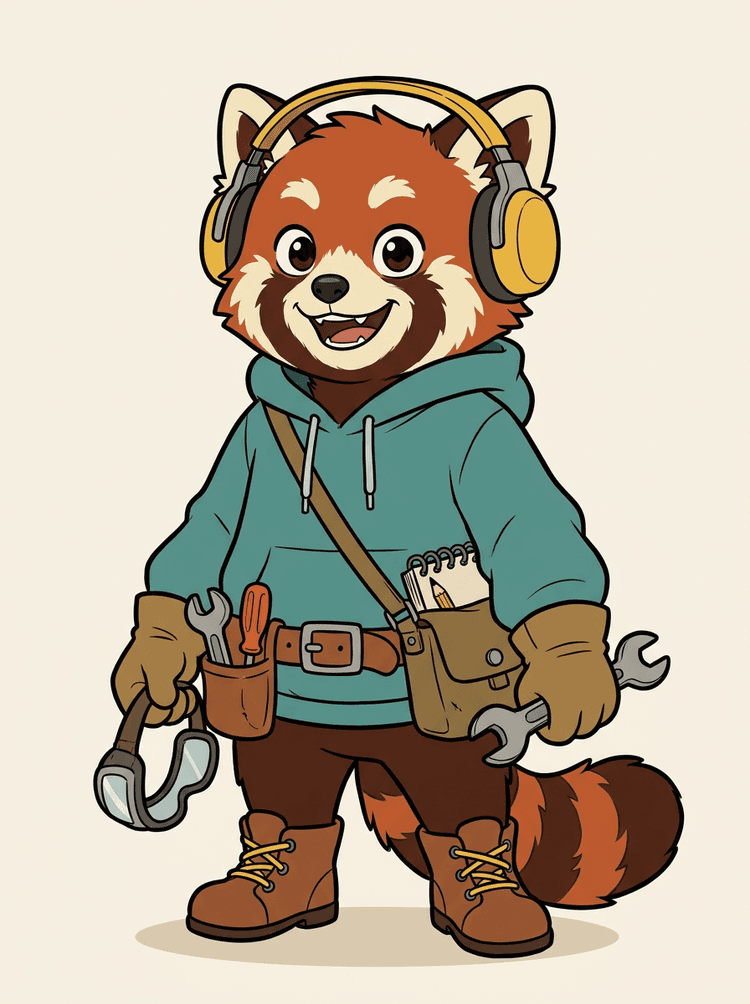
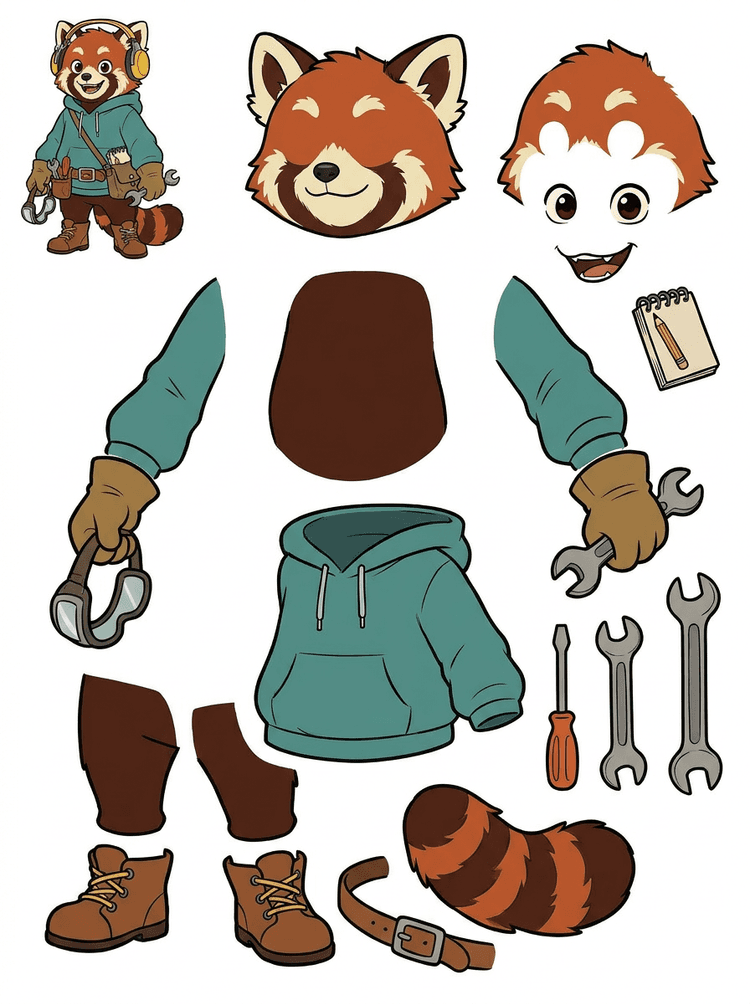
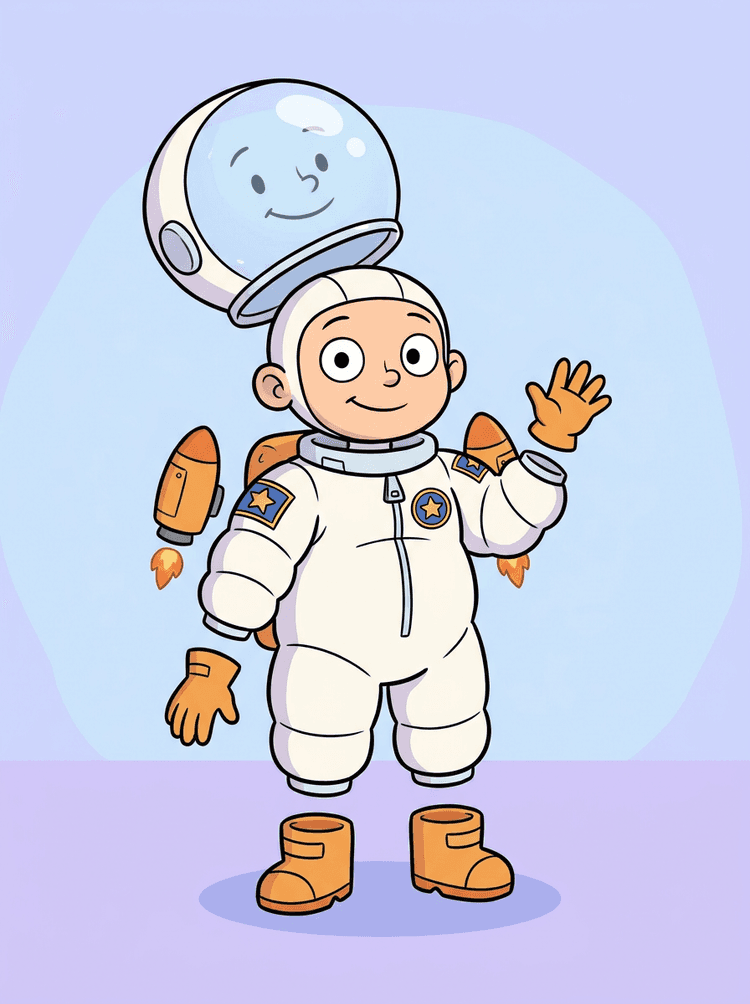
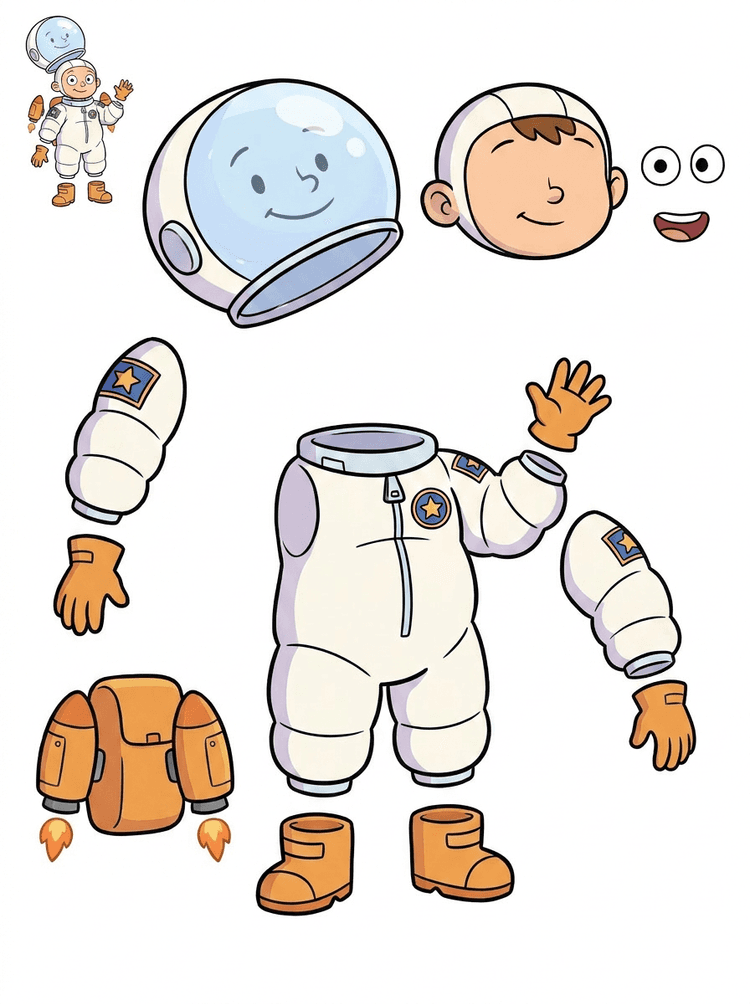
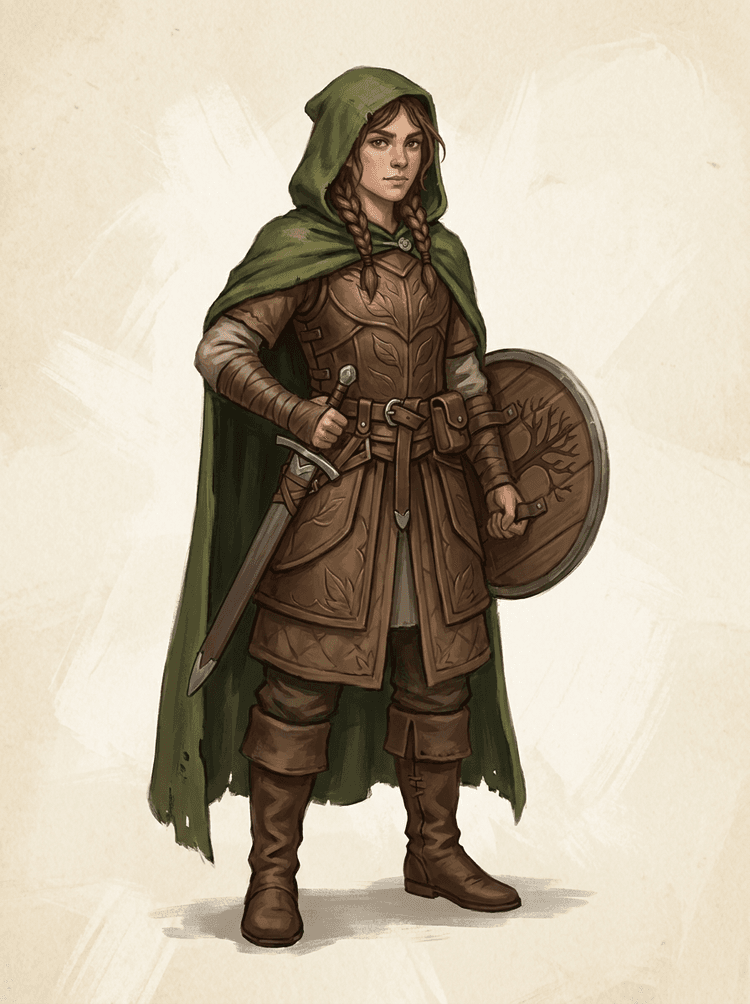
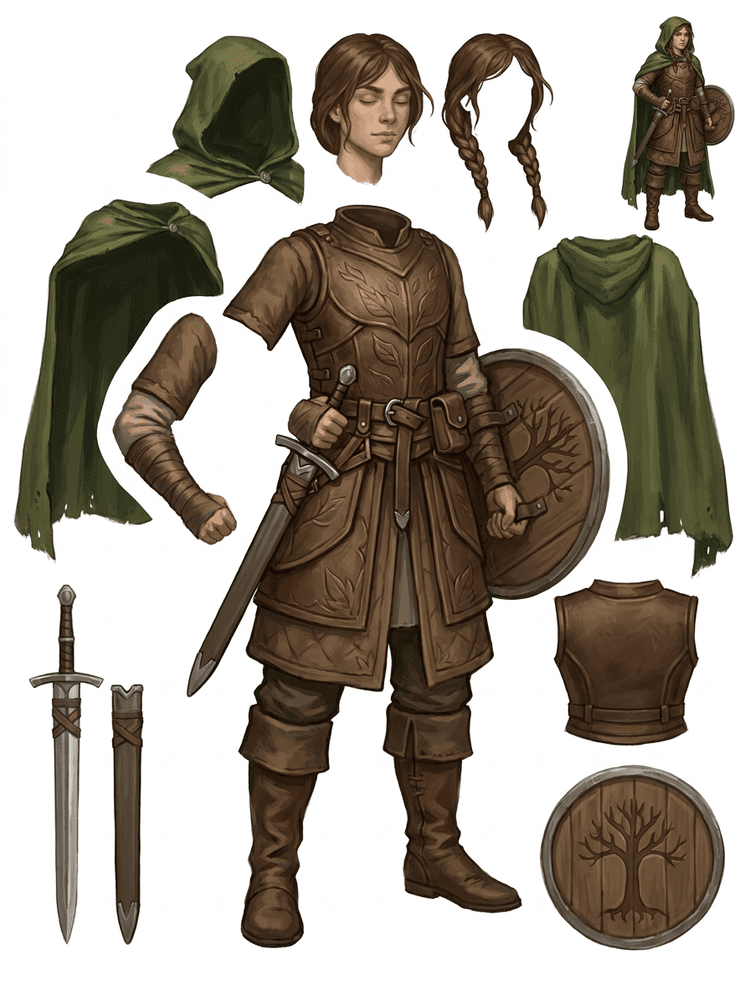
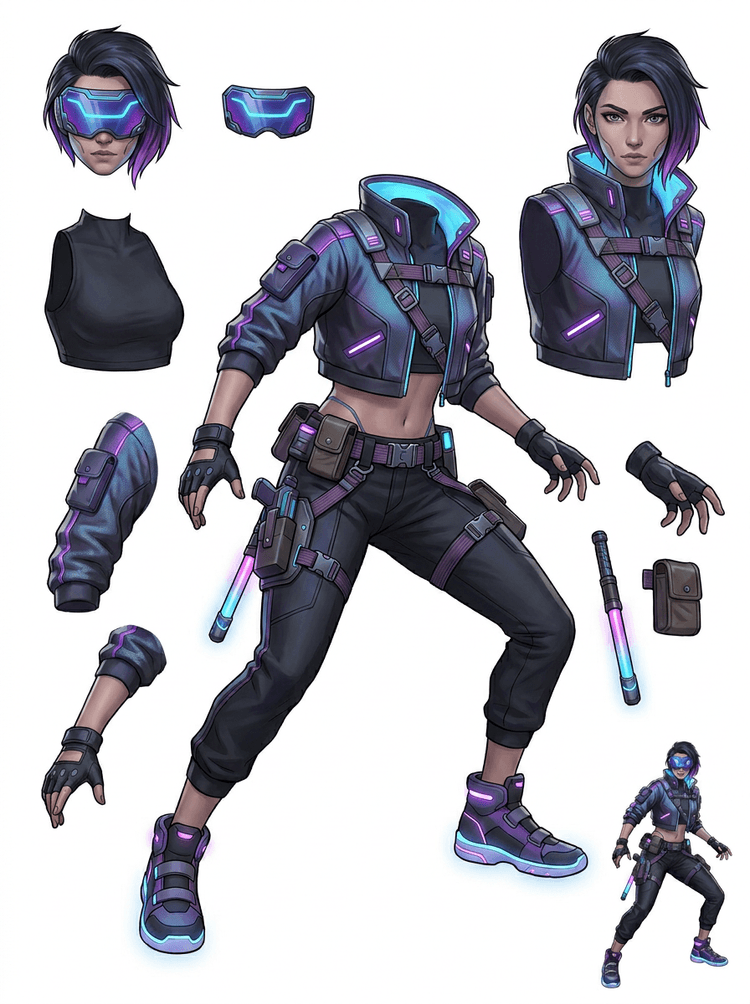
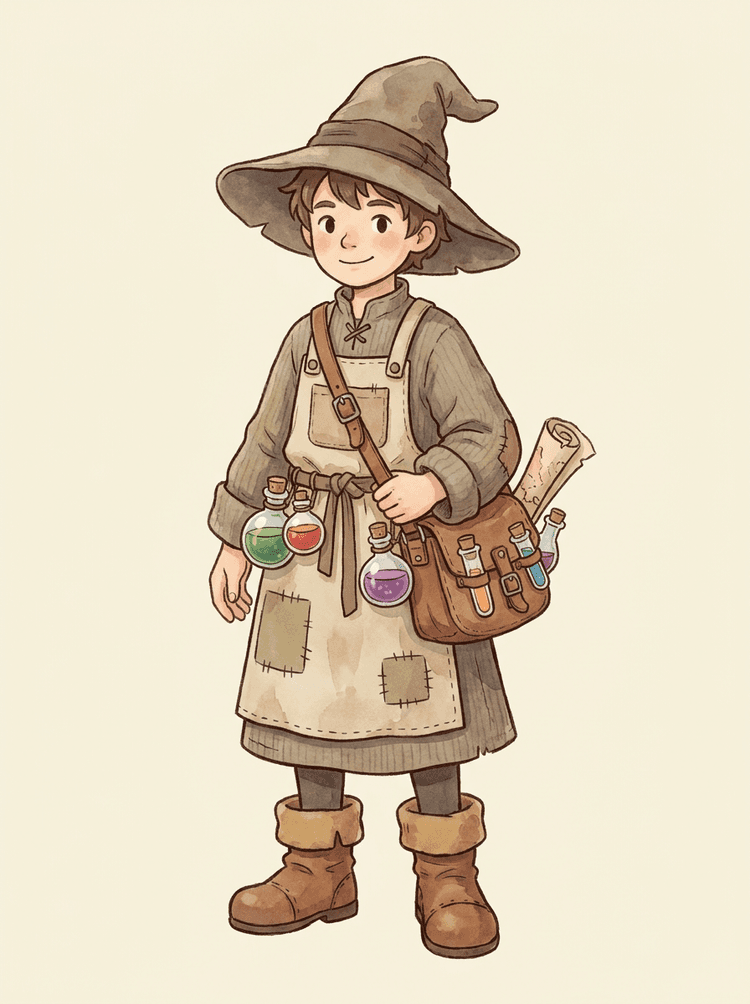
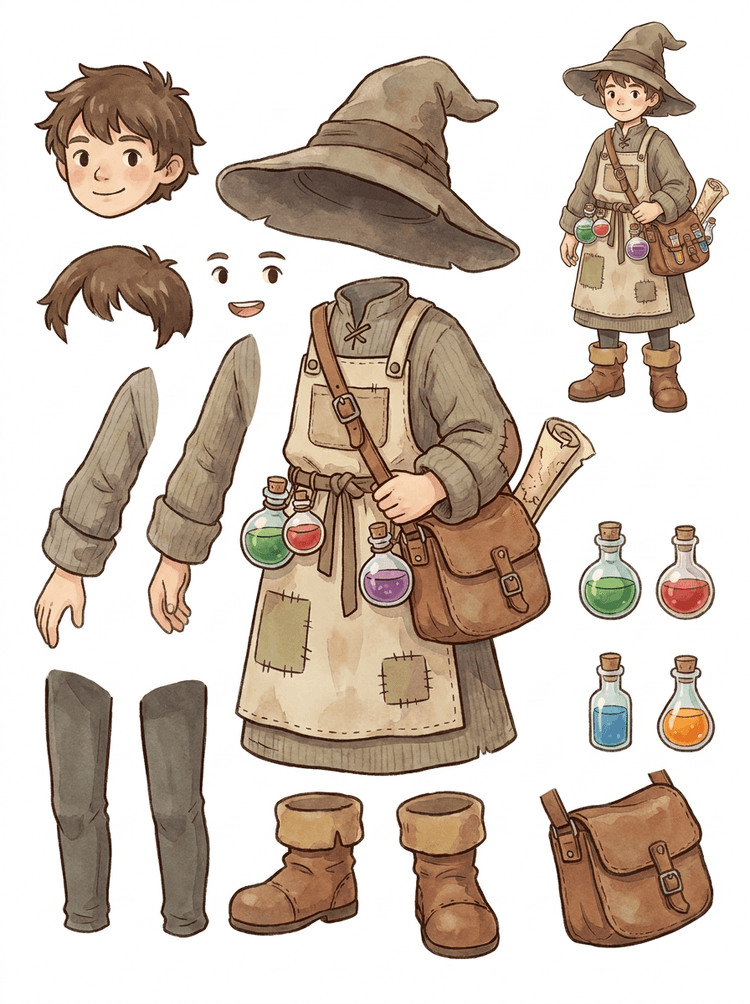
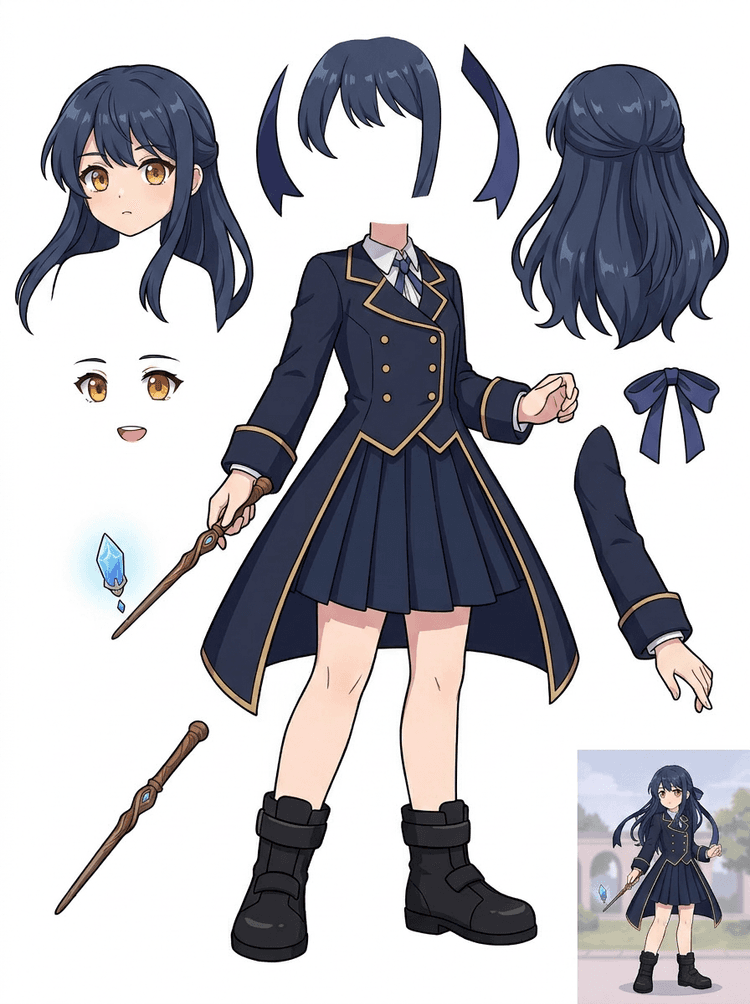
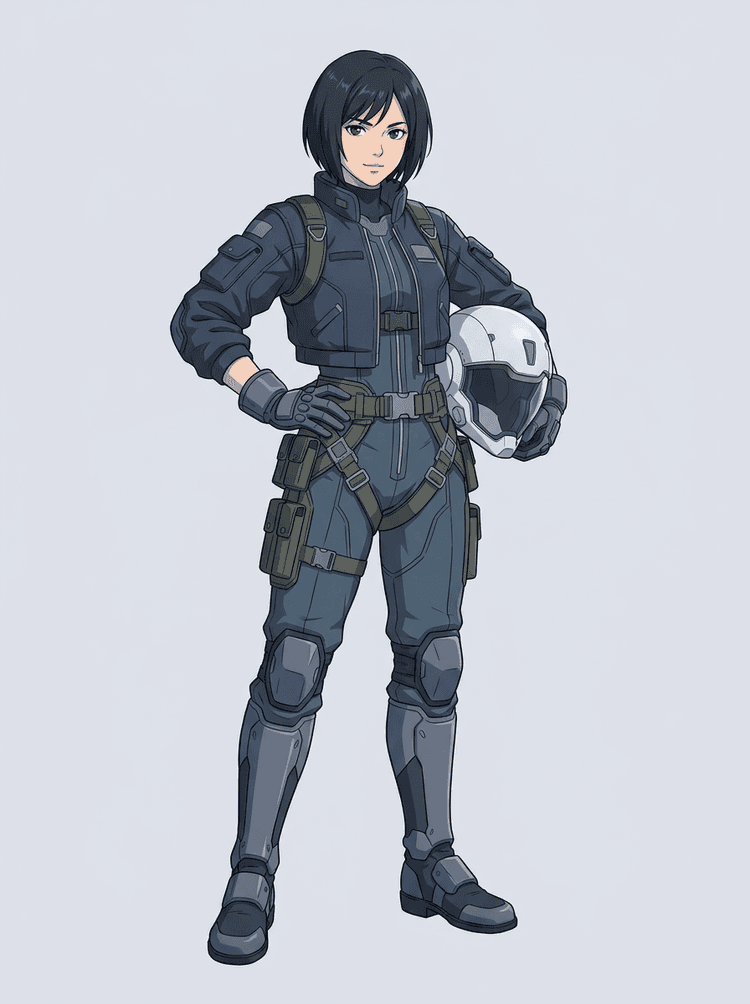
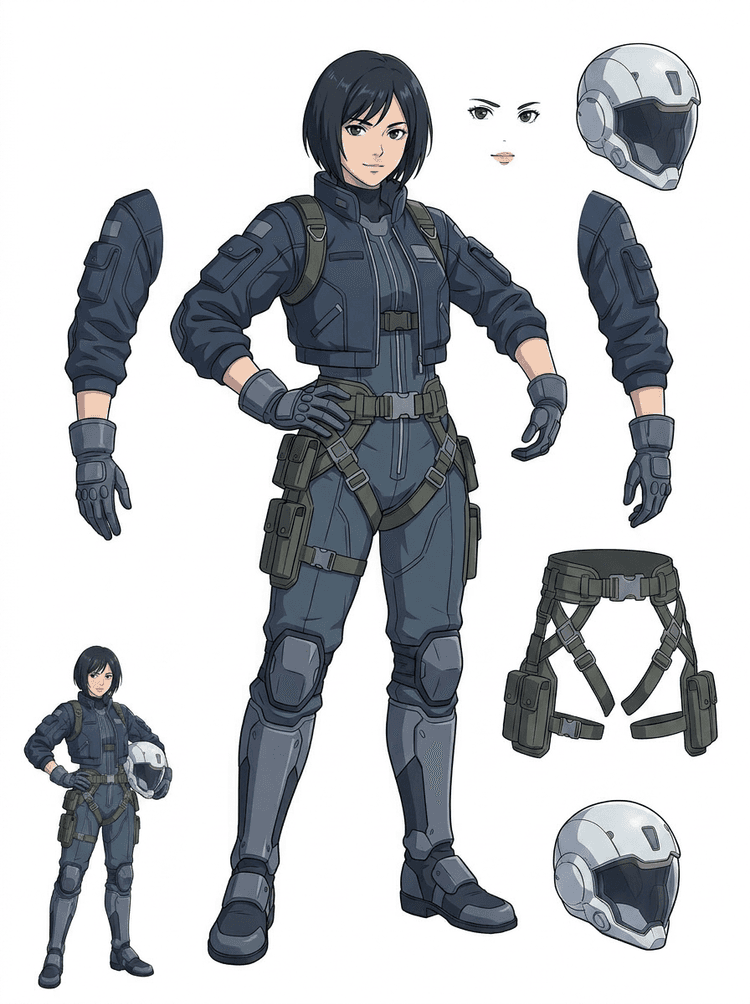
Gambar karakter yang sudah jadi terlihat selesai, tetapi sulit dianimasikan sampai rambut, wajah, pakaian, anggota tubuh, properti, dan latar belakang dipisahkan. Unggah satu gambar dan lihat lompatan sebelum/sesudah dari seni datar ke aset lapisan yang dapat digunakan.

How it works

Image to layers in three clear steps

Treat AI Layer Splitter as the first clean pass: upload one image, generate a layer sheet, then use the result in your editor, animation workflow, or game asset pipeline.

  1. 1

    Start with one clean image

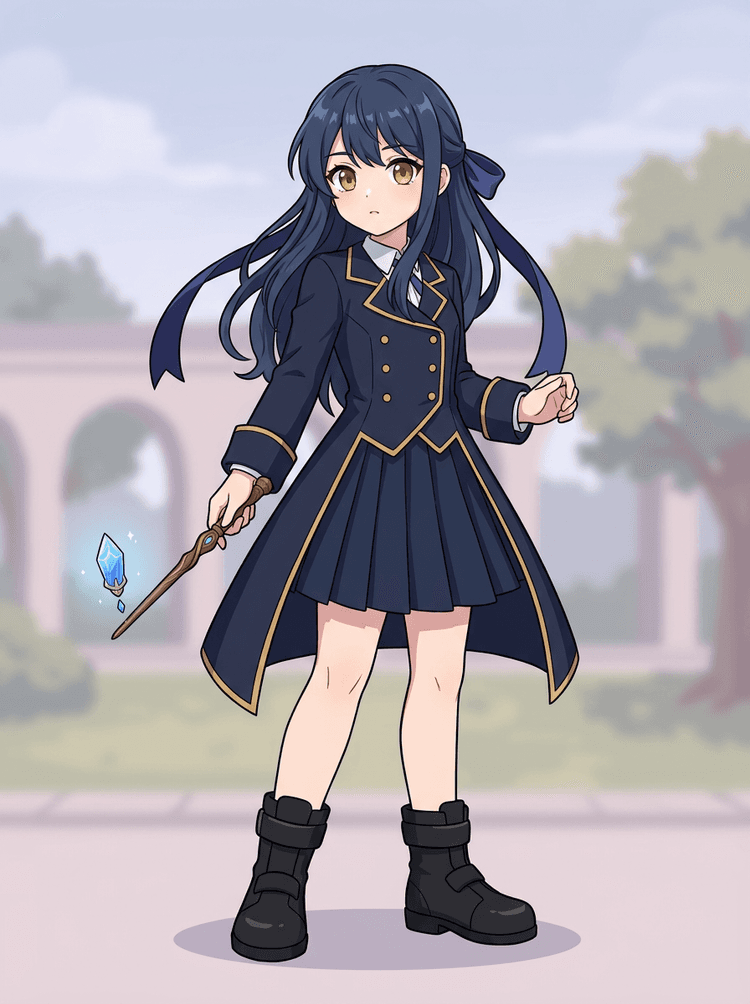
    Use full-body character art, mascot art, anime key art, game concepts, product shots, graphic designs, props, or product-style illustrations with visible edges.

  2. 2

    Generate the first sheet

    Quick Mode creates a fast visual checkpoint so the team can see hair, face, clothing, hands, props, shoes, background, text, objects, and accessories in context.

  3. 3

    Upgrade only when it is worth it

    PRO Mode is best after the first sheet proves the source is readable and the project needs a cleaner model pass.

  4. 4

    Handoff with confidence

    Use the downloaded sheet for motion blocking, rig planning, sprite references, repainting, or creative compositing.

The goal is a reviewable production starting point, not a vague AI demo.

Image layer search terms

A clearer path from flat image to editable layer assets

These workflows describe the same core need in slightly different search language: turning one finished image into separated visual parts that are easier to review, edit, animate, or rebuild.

image to layers

Turn one image to layers for production review

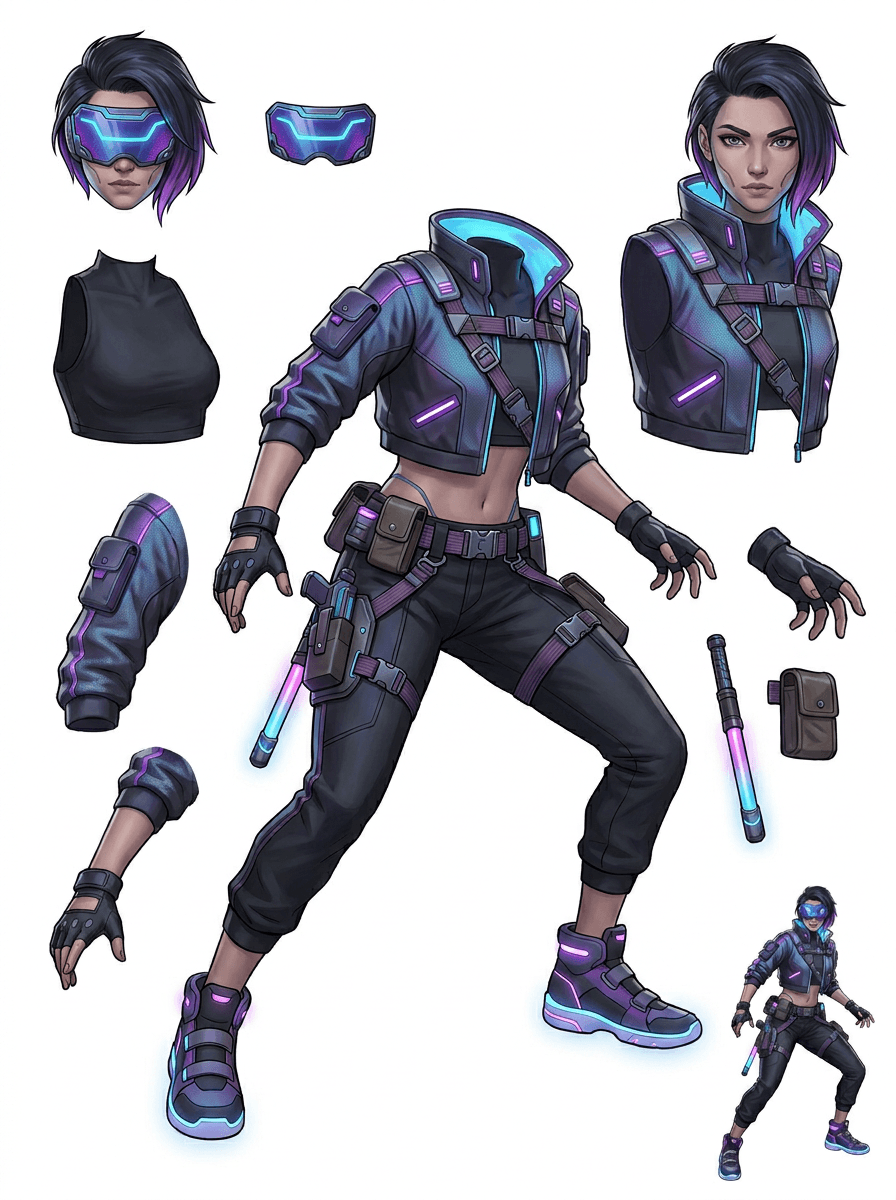
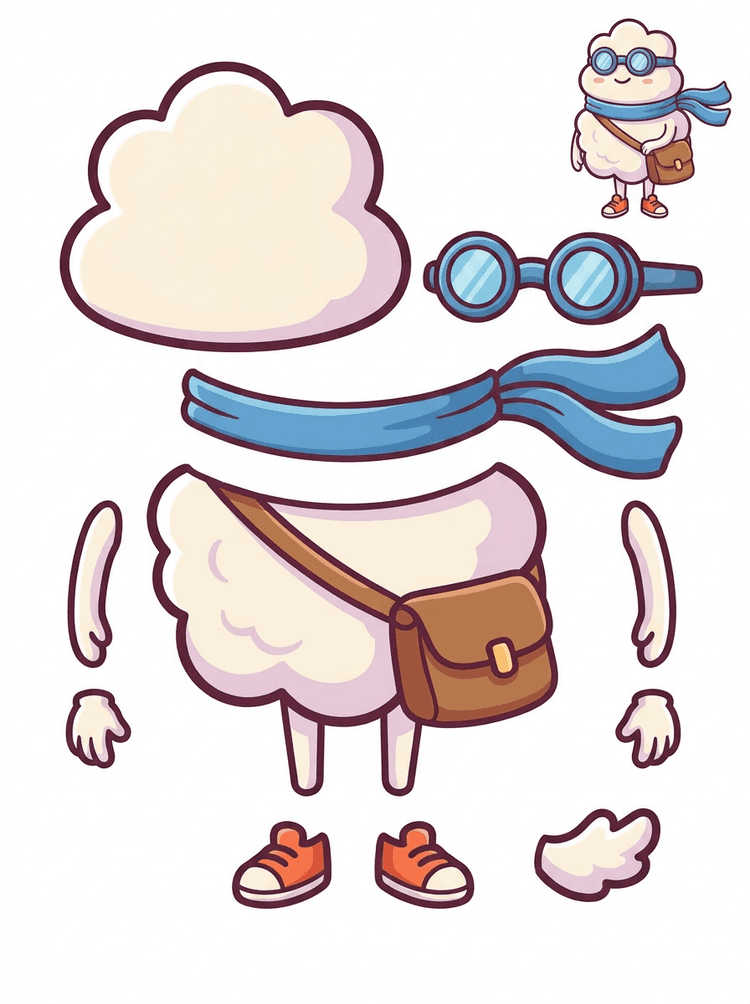
Image to layers means starting from one flat artwork file and creating a readable sheet of separated visual parts. AI Layer Splitter is built for this first-pass workflow: upload a cartoon character, game hero, anime design, product graphic, or mascot, then inspect foreground, background, objects, text, clothing, props, and accessories in one result.

  • Best for clean illustrations, graphic designs, product shots, and character art.
  • Useful before manual cleanup in Photoshop, Figma, Procreate, After Effects, or a game pipeline.

image layer separator

Use an image layer separator before detailed editing

An image layer separator helps designers and animators identify which parts of a source image can become editable assets. Instead of redrawing every element from scratch, teams can generate an asset sheet, compare the original with the separated result, and decide whether the source needs cropping, cleanup, Quick Mode, or a PRO pass.

  • Separate background, subjects, visible objects, text, and props automatically.
  • Preserve layout intent so the sheet still matches the source composition.

image separate layers

Create an image separate layers sheet for games and animation

Image separate layers searches usually come from creators who need practical assets, not just a background remover. AI Layer Splitter produces a downloadable sheet that can guide sprite prep, rig planning, motion comics, e-commerce edits, sticker variants, and character handoff. It works best when one clear subject has visible edges and minimal overlap.

  • Review character parts, accessories, equipment, and environment pieces side by side.
  • Use the sheet as a production reference before rebuilding final editable files.
Layer decomposition

AI finds the pieces,you keep the layout

AI layer splitter tool analyzes your artwork and identifies different elements like characters, backgrounds, and objects, creating separate layers. It uses AI to break down images while preserving layout, hierarchy, and design intent, and it works best with graphic design, illustrated products, character art, and clean game assets.

Source image
Part map
Asset sheet
Handoff
Layer Decomposition is an AI agent capability that separates a single image into logical, editable visual layers such as foreground, background, and objects.
AI-powered layer separation for designers, animators, and e-commerce teams. Separate background, subjects, text, and objects automatically.
Break game character concepts into practical references for sprites, UI portraits, inventory props, equipment variants, and animation tests with an AI layer splitter for game assets.
Use the first image separate layers sheet to decide whether the source needs cleanup, cropping, or a PRO pass before deeper production work.
Create a layer sheet
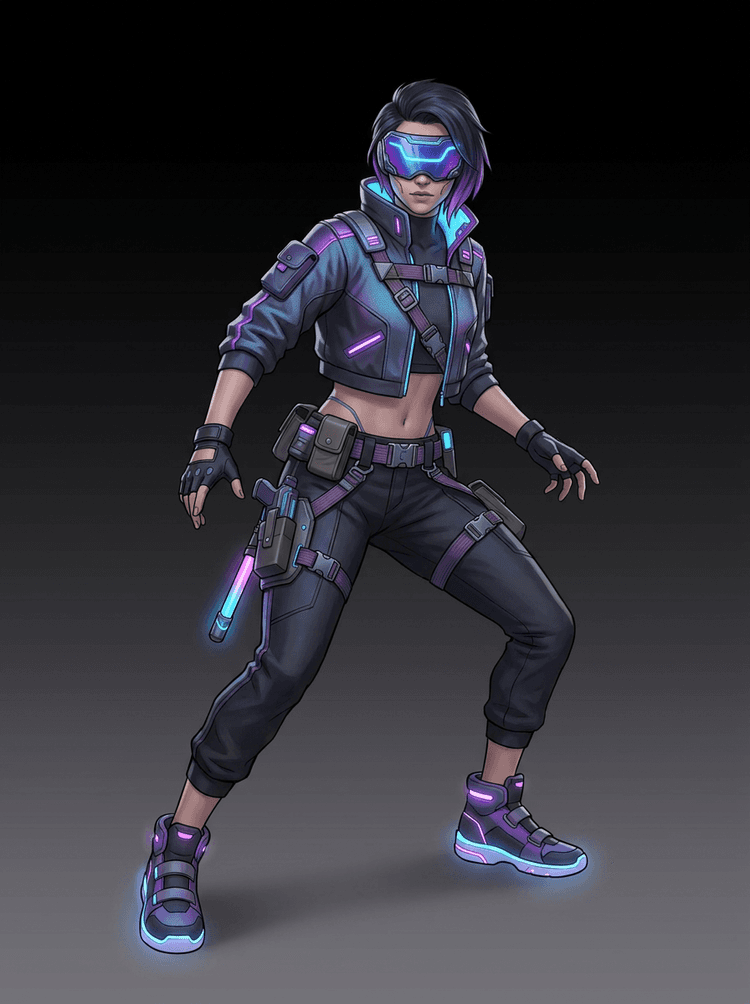
AI layer splitter pipeline showing a cyberpunk game character split into production asset parts

Pertanyaan Umum tentang Pemisahan Lapisan AI

Apa itu pemisahan lapisan AI?

Pemisahan lapisan AI menggunakan model gambar untuk memisahkan gambar datar menjadi bagian visual yang dapat digunakan, seperti komponen karakter, properti, subjek latar depan, latar belakang, atau aset animasi.

Bagaimana cara memisahkan gambar menjadi lapisan dengan AI?

Unggah gambar, pilih Quick Mode atau PRO Mode, buat hasilnya, lalu unduh lembar aset atau hasil lapisan terpisah.

Apa itu Quick Mode?

Quick Mode membuat satu lembar aset terorganisasi dari gambar yang diunggah. Mode ini dirancang untuk pengguna yang menginginkan hasil langsung dan mudah dipahami.

Apa itu PRO Mode?

PRO Mode mempertahankan alur kerja lanjutan yang mengekstrak beberapa gambar lapisan individual untuk pengguna yang membutuhkan kontrol pengeditan lebih besar.

Bisakah saya menggunakan lapisan hasil pemisahan AI untuk animasi?

Ya. Hasilnya berguna untuk blocking animasi, perencanaan Live2D, efek parallax, pengeditan karakter berbicara, dan persiapan aset game.

Apakah saya perlu keterampilan desain untuk menggunakannya?

Tidak. Quick Mode dibuat untuk penggunaan sederhana dengan unggah lalu buat. PRO Mode tersedia saat Anda menginginkan kontrol lebih atas hasil terpisah.

Jenis gambar apa yang paling cocok?

Gambar karakter, properti, objek, dan ilustrasi yang jelas bekerja paling baik, terutama ketika bagian utama terlihat dan tidak terlalu tertutup oleh elemen lain.

Bisakah saya mengedit lapisan hasil pemisahan AI?

Ya. Anda dapat menggunakan hasilnya sebagai lembar referensi atau mengunduh hasil terpisah di PRO Mode untuk pengeditan, kompositing, dan gambar ulang.

Bisakah saya menggunakan hasilnya secara komersial?

Anda dapat menggunakan hasil yang dibuat sesuai dengan paket LlamaGen Anda dan ketentuan kami. Pastikan hak atas gambar sumber juga mengizinkan penggunaan yang Anda maksud.

Apa keterbatasannya?

Detail yang sangat kecil, oklusi berat, transparansi kompleks, dan bagian yang saling tumpang tindih mungkin memerlukan pembersihan manual atau pembuatan kedua.

What is the difference between Quick Mode and PRO Mode?

Quick Mode creates a fast reviewable asset sheet. PRO Mode uses an upgraded model for cleaner separation when the source image is readable and the project needs a higher-quality pass.

Will every image split perfectly?

No. Very crowded scenes, hidden body parts, overlapping subjects, sketch marks, heavy shadows, cropped limbs, or tiny accessories may still need source cleanup or manual finishing.

Can I use the result commercially?

You can use generated outputs according to your LlamaGen plan and terms. Make sure you also have the rights to the source image you upload.


Ready to split

Turn one character image into production-ready parts

Start with the preloaded sample, upload your own cartoon, anime, or game character, and create a reviewable layer sheet in minutes.