Gift icon
Pirmiausia problema, įrankis jau paruoštas

Paverskite plokščią piešinį į animacijai paruoštus sluoksnius

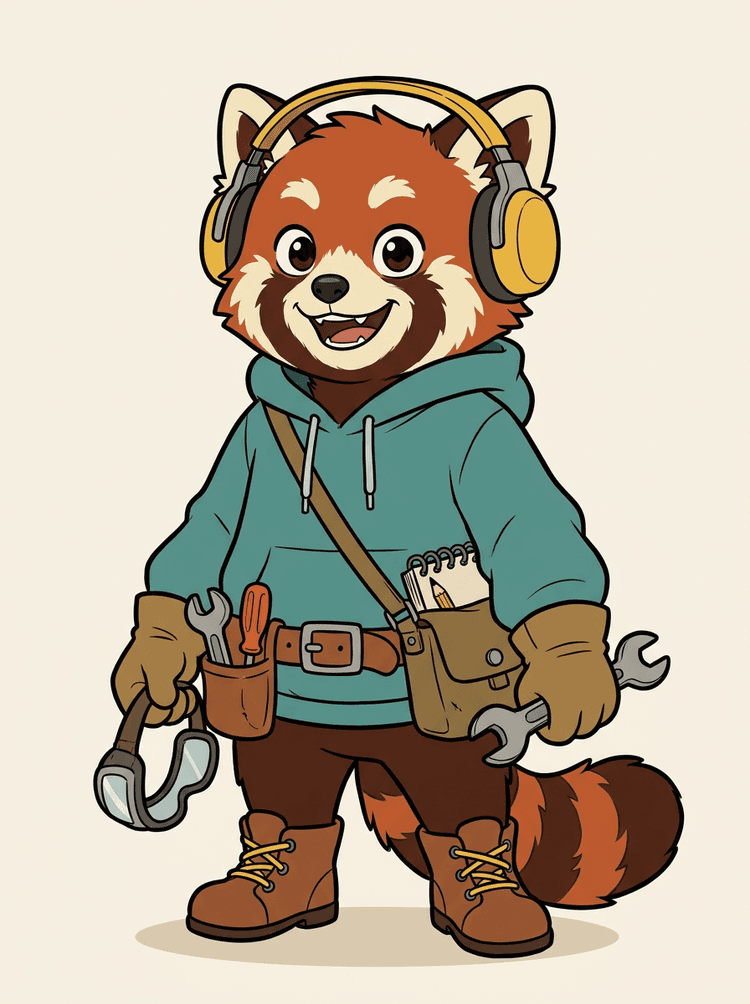
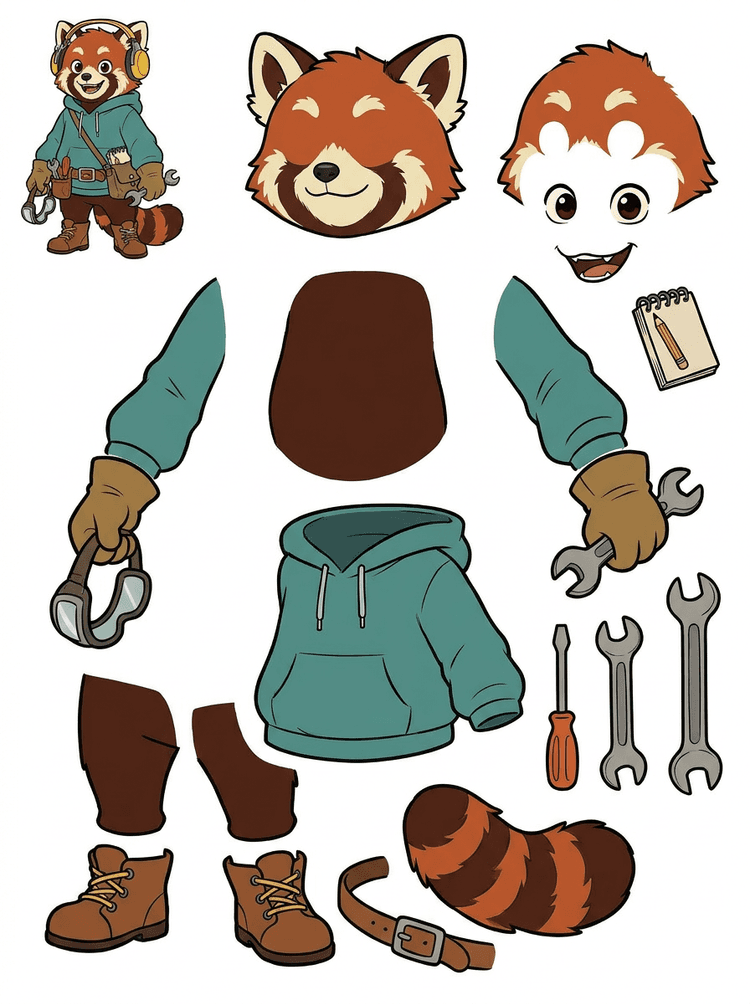
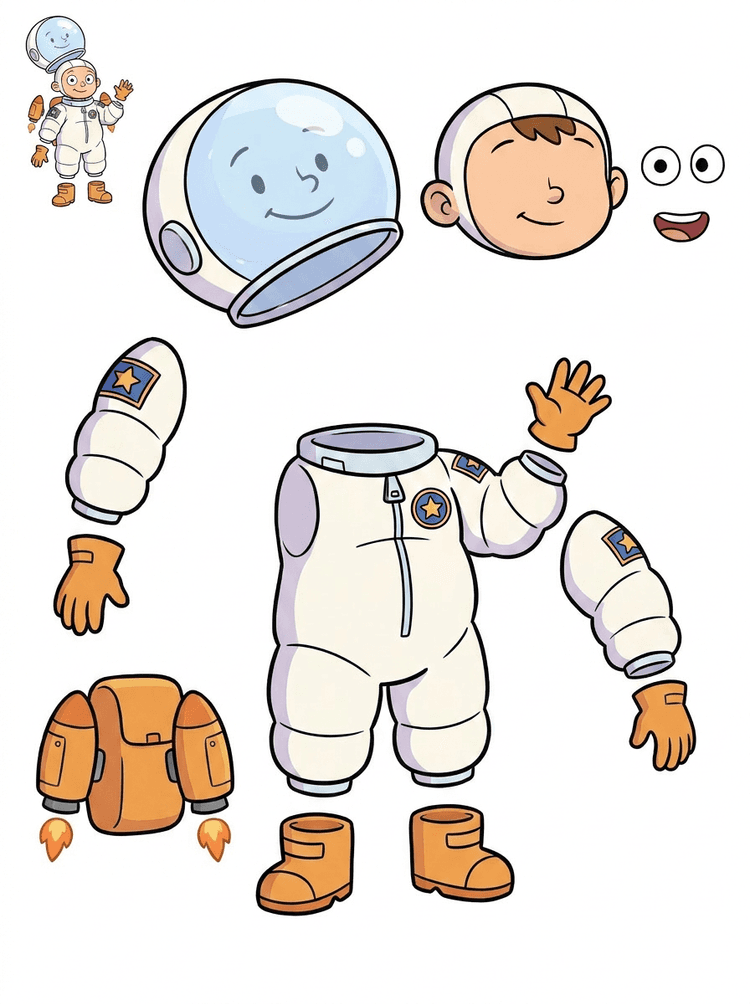
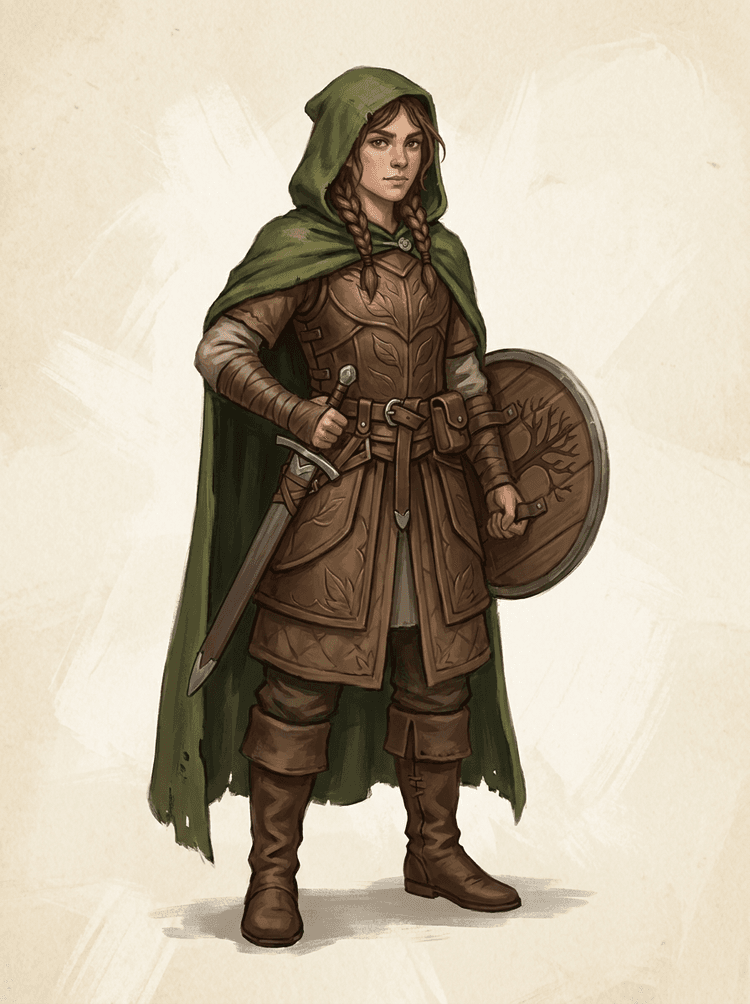
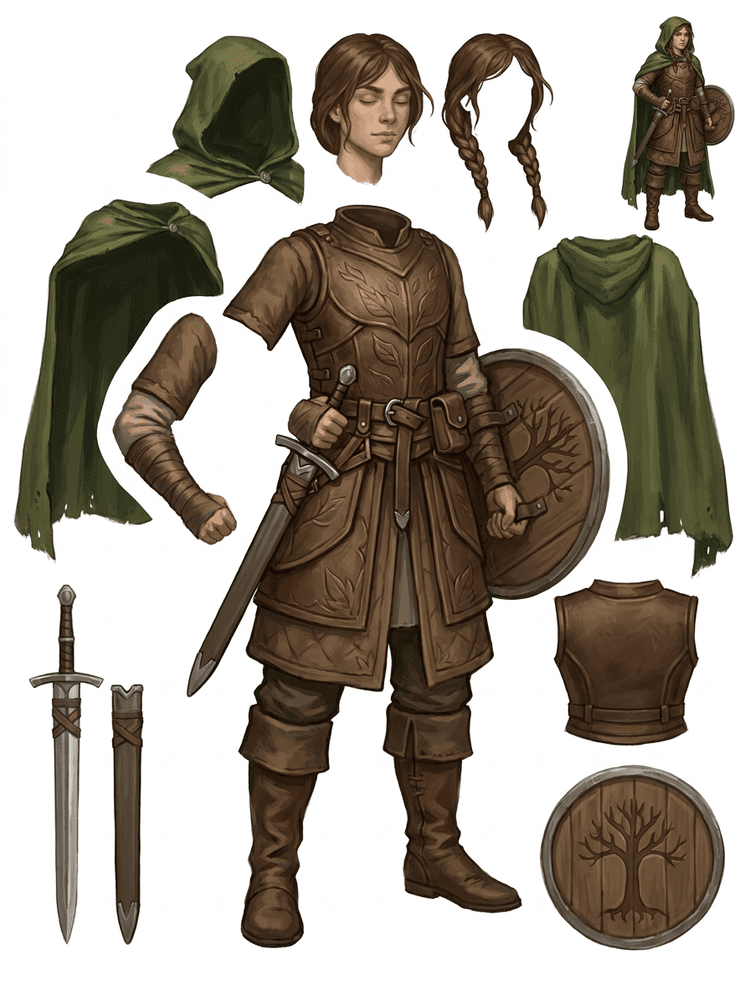
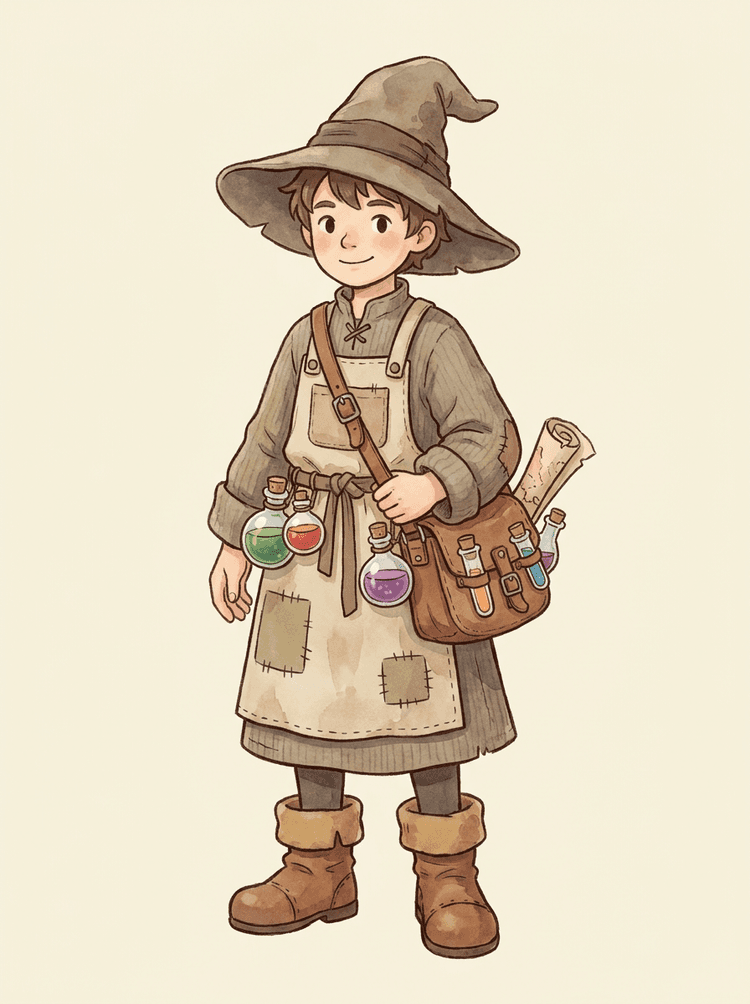
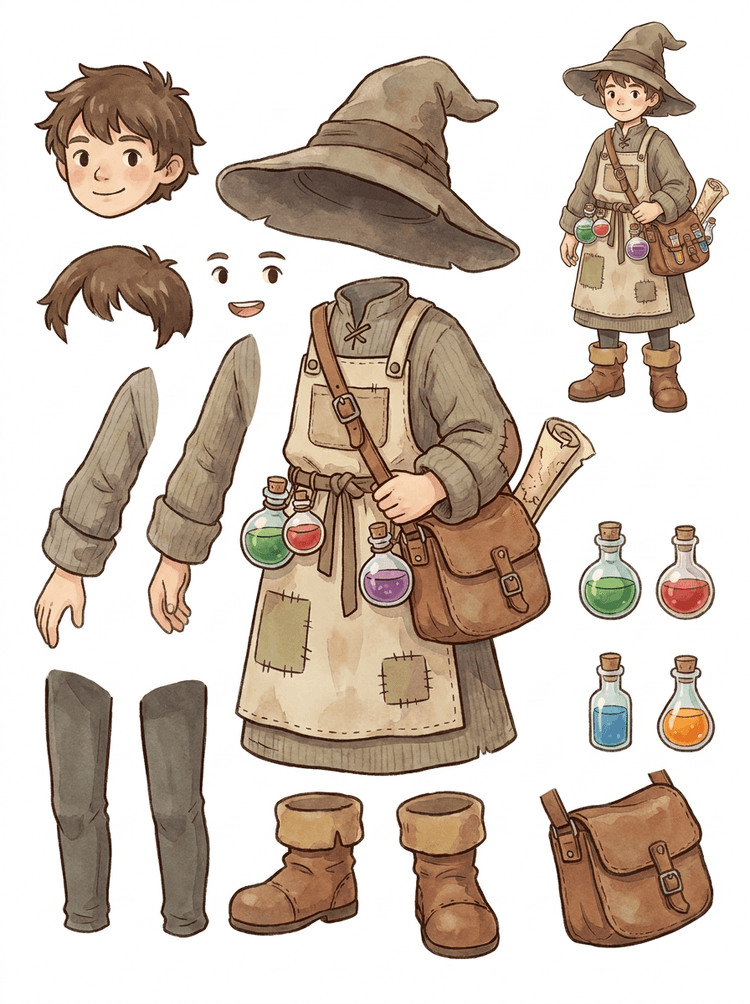
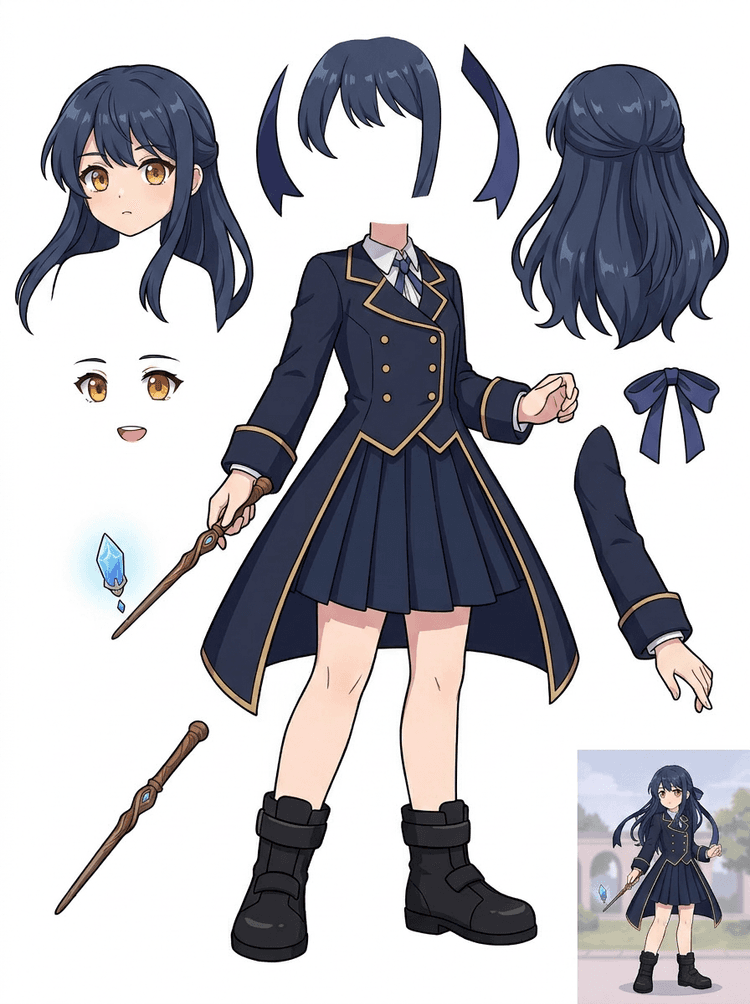
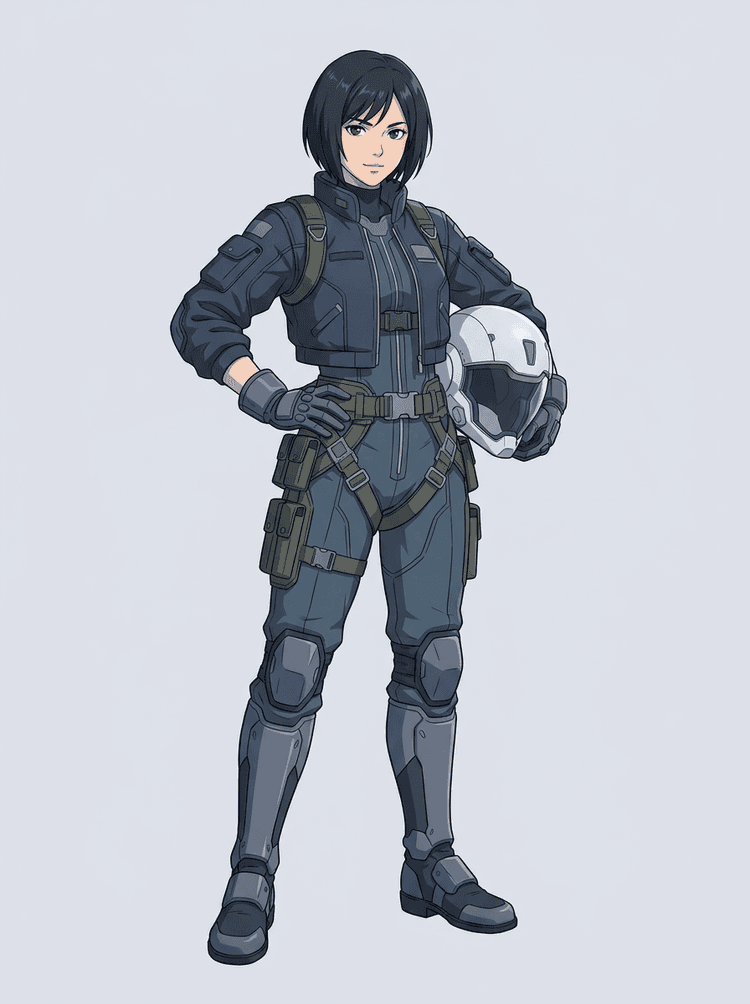
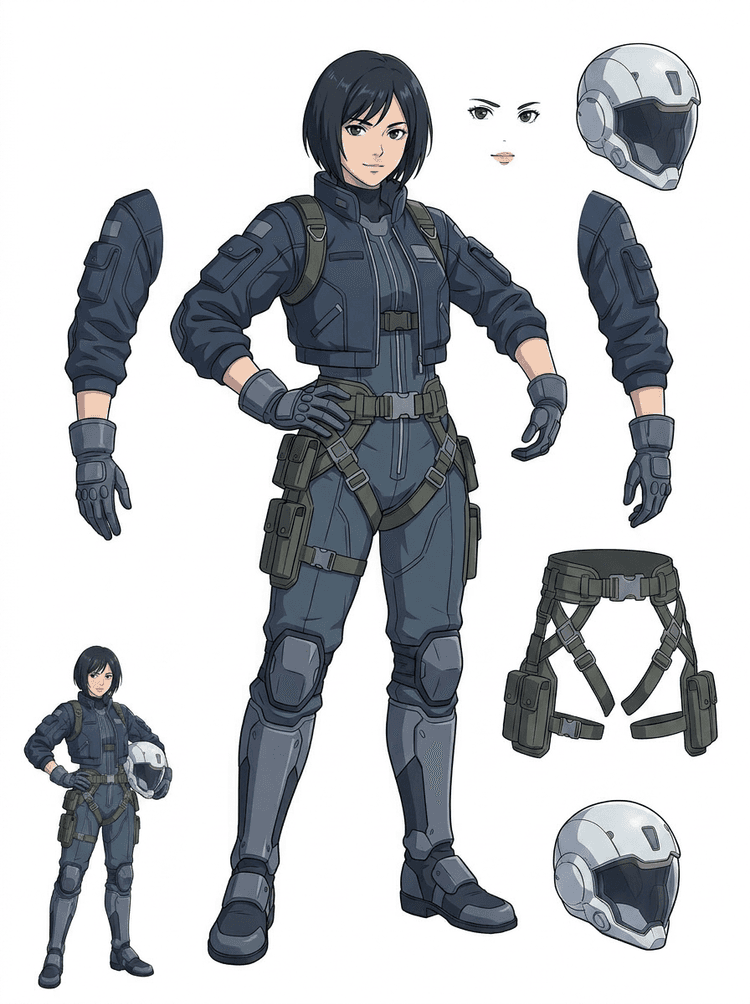
Užbaigtas personažo vaizdas atrodo baigtas, tačiau jį sunku animuoti, kol plaukai, veidas, drabužiai, galūnės, rekvizitai ir fonas nėra atskirti. Įkelkite vieną vaizdą ir pamatykite šuolį prieš ir po – nuo plokščio piešinio iki naudojamų sluoksnių išteklių.

How it works

Image to layers in three clear steps

Treat AI Layer Splitter as the first clean pass: upload one image, generate a layer sheet, then use the result in your editor, animation workflow, or game asset pipeline.

  1. 1

    Start with one clean image

    Use full-body character art, mascot art, anime key art, game concepts, product shots, graphic designs, props, or product-style illustrations with visible edges.

  2. 2

    Generate the first sheet

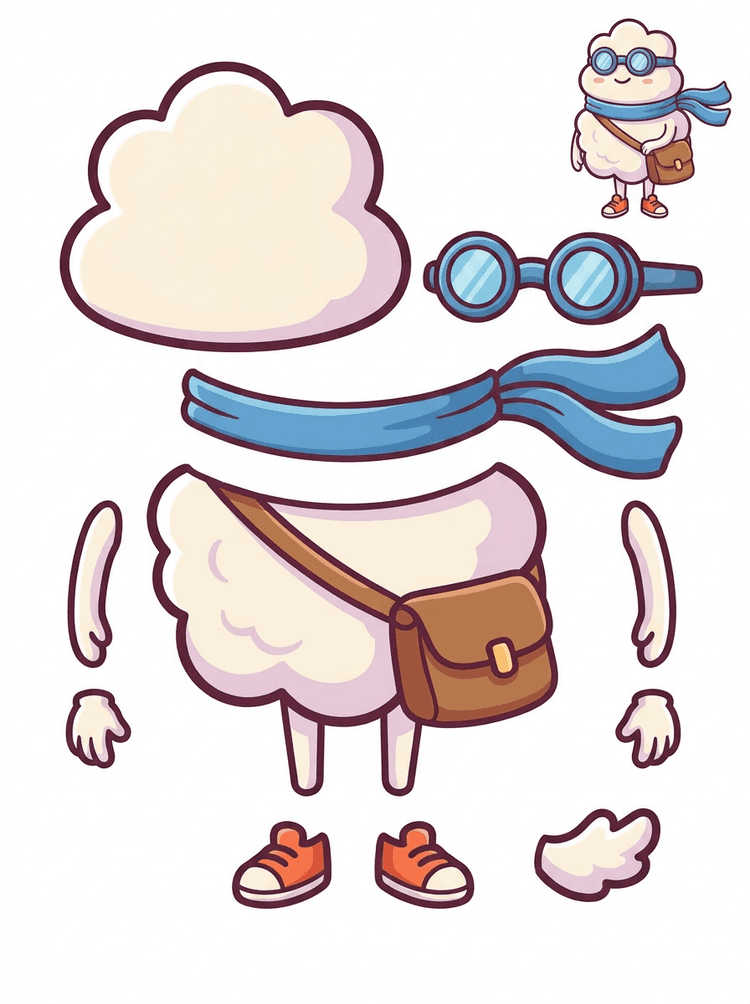
    Quick Mode creates a fast visual checkpoint so the team can see hair, face, clothing, hands, props, shoes, background, text, objects, and accessories in context.

  3. 3

    Upgrade only when it is worth it

    PRO Mode is best after the first sheet proves the source is readable and the project needs a cleaner model pass.

  4. 4

    Handoff with confidence

    Use the downloaded sheet for motion blocking, rig planning, sprite references, repainting, or creative compositing.

The goal is a reviewable production starting point, not a vague AI demo.

Image layer search terms

A clearer path from flat image to editable layer assets

These workflows describe the same core need in slightly different search language: turning one finished image into separated visual parts that are easier to review, edit, animate, or rebuild.

image to layers

Turn one image to layers for production review

Image to layers means starting from one flat artwork file and creating a readable sheet of separated visual parts. AI Layer Splitter is built for this first-pass workflow: upload a cartoon character, game hero, anime design, product graphic, or mascot, then inspect foreground, background, objects, text, clothing, props, and accessories in one result.

  • Best for clean illustrations, graphic designs, product shots, and character art.
  • Useful before manual cleanup in Photoshop, Figma, Procreate, After Effects, or a game pipeline.

image layer separator

Use an image layer separator before detailed editing

An image layer separator helps designers and animators identify which parts of a source image can become editable assets. Instead of redrawing every element from scratch, teams can generate an asset sheet, compare the original with the separated result, and decide whether the source needs cropping, cleanup, Quick Mode, or a PRO pass.

  • Separate background, subjects, visible objects, text, and props automatically.
  • Preserve layout intent so the sheet still matches the source composition.

image separate layers

Create an image separate layers sheet for games and animation

Image separate layers searches usually come from creators who need practical assets, not just a background remover. AI Layer Splitter produces a downloadable sheet that can guide sprite prep, rig planning, motion comics, e-commerce edits, sticker variants, and character handoff. It works best when one clear subject has visible edges and minimal overlap.

  • Review character parts, accessories, equipment, and environment pieces side by side.
  • Use the sheet as a production reference before rebuilding final editable files.
Layer decomposition

AI finds the pieces,you keep the layout

AI layer splitter tool analyzes your artwork and identifies different elements like characters, backgrounds, and objects, creating separate layers. It uses AI to break down images while preserving layout, hierarchy, and design intent, and it works best with graphic design, illustrated products, character art, and clean game assets.

Source image
Part map
Asset sheet
Handoff
Layer Decomposition is an AI agent capability that separates a single image into logical, editable visual layers such as foreground, background, and objects.
AI-powered layer separation for designers, animators, and e-commerce teams. Separate background, subjects, text, and objects automatically.
Break game character concepts into practical references for sprites, UI portraits, inventory props, equipment variants, and animation tests with an AI layer splitter for game assets.
Use the first image separate layers sheet to decide whether the source needs cleanup, cropping, or a PRO pass before deeper production work.
Create a layer sheet
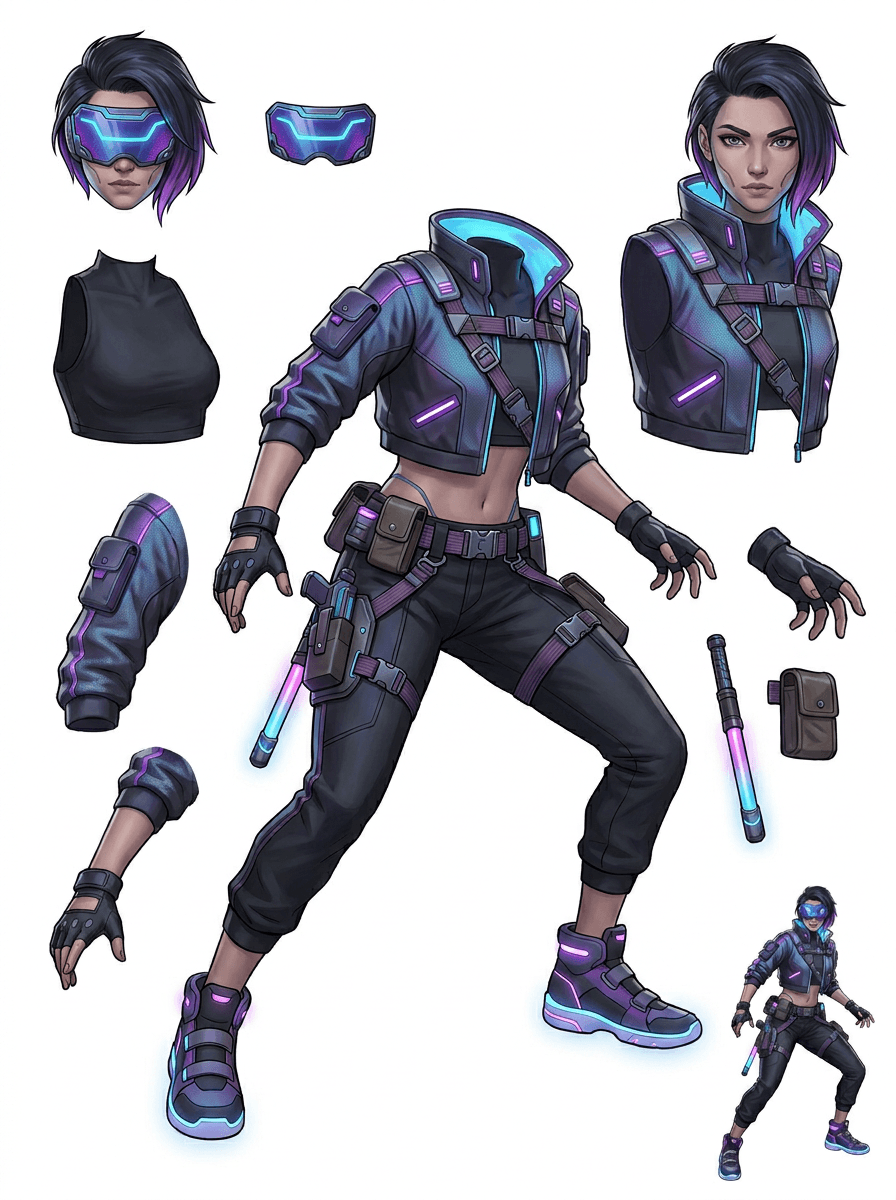
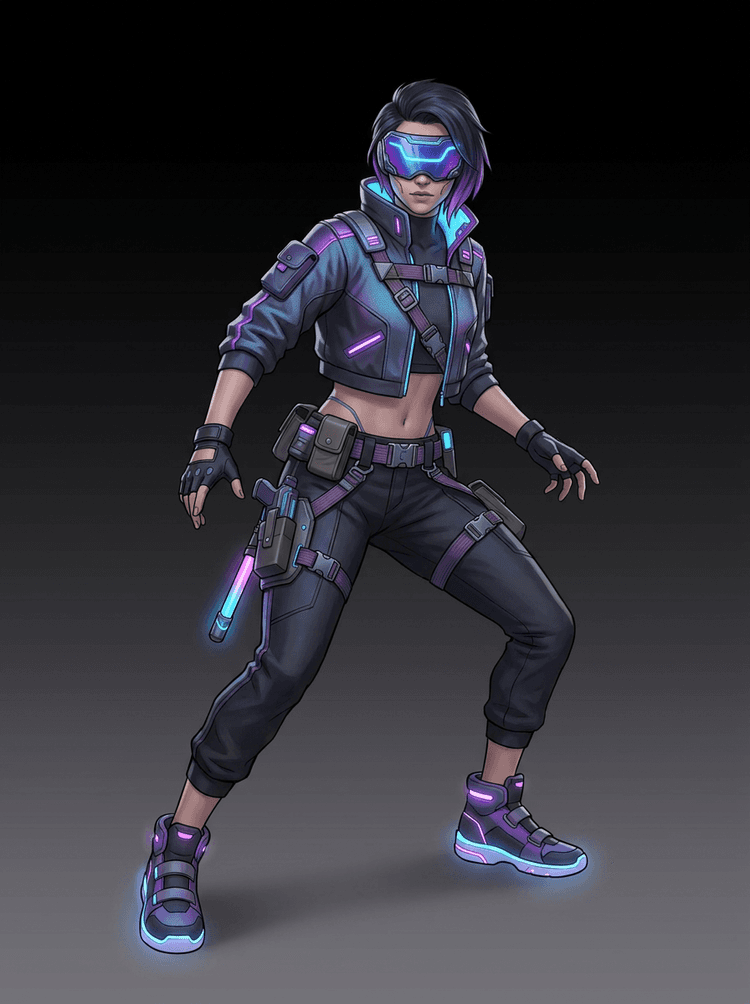
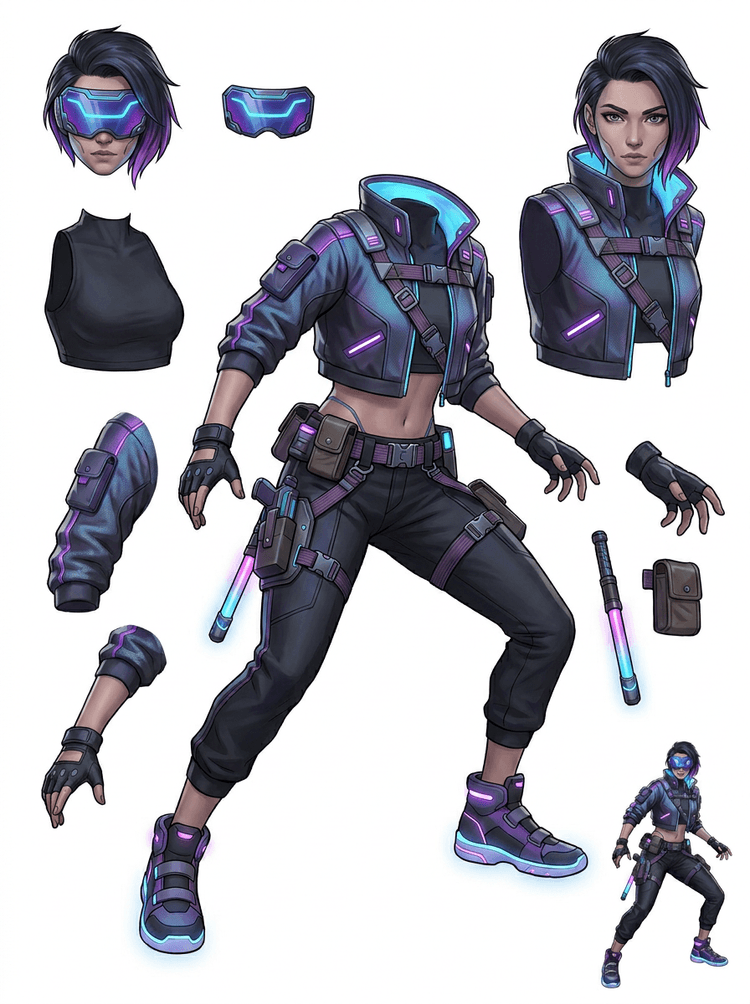
AI layer splitter pipeline showing a cyberpunk game character split into production asset parts

Dažniausi klausimai apie AI sluoksnių skaidymą

Kas yra AI sluoksnių skaidymas?

AI sluoksnių skaidymas naudoja vaizdų modelius plokščiam vaizdui atskirti į tinkamas naudoti vizualines dalis, tokias kaip personažo komponentai, rekvizitai, priekinio plano objektai, fonai ar animacijos ištekliai.

Kaip su AI suskaidyti vaizdus į sluoksnius?

Įkelkite vaizdą, pasirinkite Quick Mode arba PRO Mode, sugeneruokite rezultatą, tada atsisiųskite išteklių lapą arba atskirtus sluoksnių rezultatus.

Kas yra Quick Mode?

Quick Mode sukuria vieną tvarkingą išteklių lapą iš įkelto vaizdo. Jis skirtas naudotojams, kurie nori tiesioginio ir lengvai suprantamo rezultato.

Kas yra PRO Mode?

PRO Mode išlaiko pažangią darbo eigą, kuri ištraukia kelis atskirus sluoksnių vaizdus naudotojams, kuriems reikia daugiau redagavimo valdymo.

Ar galiu naudoti AI suskaidytus sluoksnius animacijai?

Taip. Rezultatai naudingi animacijos blokavimui, Live2D planavimui, paralakso efektams, kalbančio personažo redagavimui ir žaidimų išteklių paruošimui.

Ar man reikia dizaino įgūdžių, kad tuo naudočiausi?

Ne. Quick Mode sukurtas paprastam įkelk ir generuok naudojimui. PRO Mode pasiekiamas tada, kai norite daugiau valdymo atskiriems rezultatams.

Kokie vaizdų tipai veikia geriausiai?

Geriausiai tinka aiškūs personažų, rekvizitų, objektų ir iliustracijų vaizdai, ypač kai pagrindinės dalys yra matomos ir nėra stipriai paslėptos už kitų elementų.

Ar galiu redaguoti AI suskaidytus sluoksnius?

Taip. Galite naudoti rezultatą kaip nuorodų lapą arba atsisiųsti atskirtus rezultatus PRO Mode redagavimui, komponavimui ir perpiešimui.

Ar galiu naudoti rezultatus komerciškai?

Sugeneruotus rezultatus galite naudoti pagal savo LlamaGen planą ir mūsų sąlygas. Taip pat įsitikinkite, kad pradinio vaizdo teisės leidžia jūsų numatytą naudojimą.

Kokie yra apribojimai?

Labai smulkios detalės, stiprus uždengimas, sudėtingas skaidrumas ir persidengiančios dalys gali reikalauti rankinio valymo arba antro generavimo.

What is the difference between Quick Mode and PRO Mode?

Quick Mode creates a fast reviewable asset sheet. PRO Mode uses an upgraded model for cleaner separation when the source image is readable and the project needs a higher-quality pass.

Will every image split perfectly?

No. Very crowded scenes, hidden body parts, overlapping subjects, sketch marks, heavy shadows, cropped limbs, or tiny accessories may still need source cleanup or manual finishing.

Can I use the result commercially?

You can use generated outputs according to your LlamaGen plan and terms. Make sure you also have the rights to the source image you upload.


Ready to split

Turn one character image into production-ready parts

Start with the preloaded sample, upload your own cartoon, anime, or game character, and create a reviewable layer sheet in minutes.